ONLYOFFICE Docs 9.2 Release Brings AI Grammar Checks to the Free Office Suite

By Blogger
· 1 view
Tue, 02 Dec 2025 09:07:48 GMT
ONLYOFFICE continues to offer a compelling alternative to proprietary suites like Microsoft Office, with strong document format compatibility and a privacy-respecting approach.
The open source suite has successfully built a reputation for combining professional features with user data protection. Now, the developers have released ONLYOFFICE Docs 9.2, building on the work of the earlier release.
Let's dig in! 🤓
🆕 ONLYOFFICE Docs 9.2: What's New?
It is now possible to customize keyboard shortcuts to suit your workflow needs. To do that, open the File tab and head into the Advanced Settings, where you will find options to reconfigure the shortcuts.
This should come in really handy if you are someone who has spent years on a certain office suite and want to replicate your workflow on ONLYOFFICE. Power users who rely heavily on keyboard navigation also benefit from this.
Next up is the new macro recording feature, which helps automate repetitive tasks that slow down your workflow. Head to the View tab and click "Record macro" to start capturing your actions.
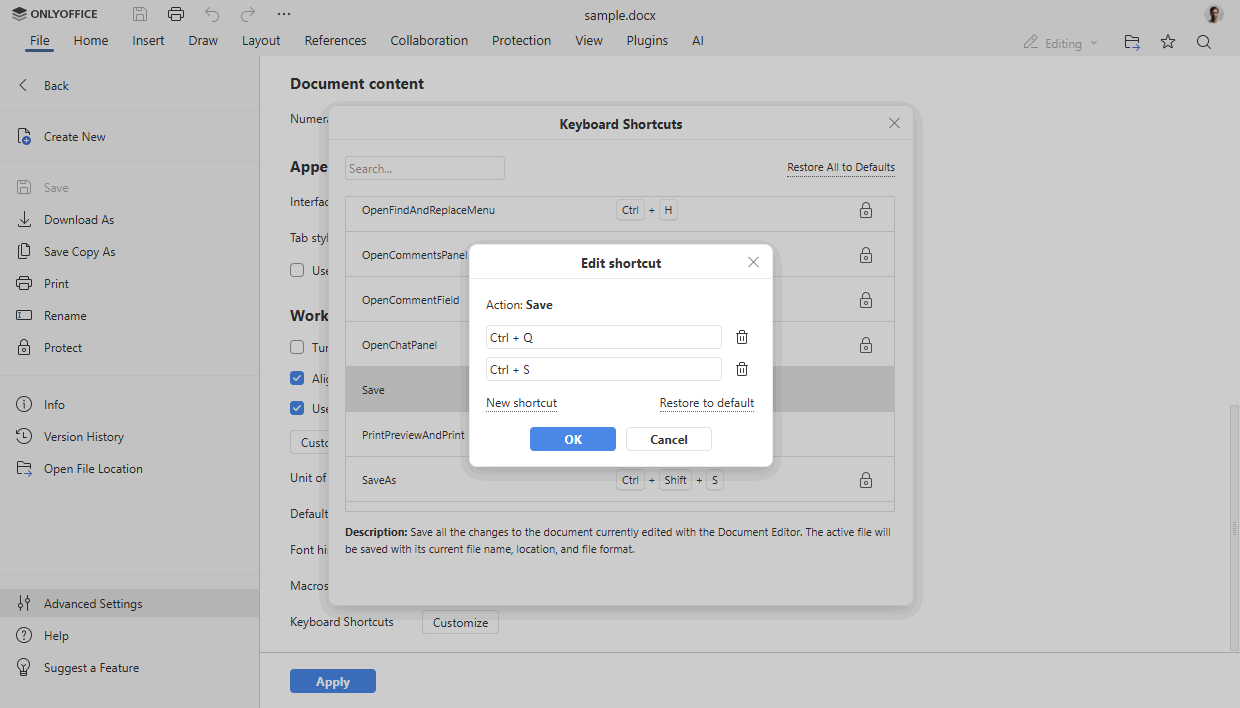
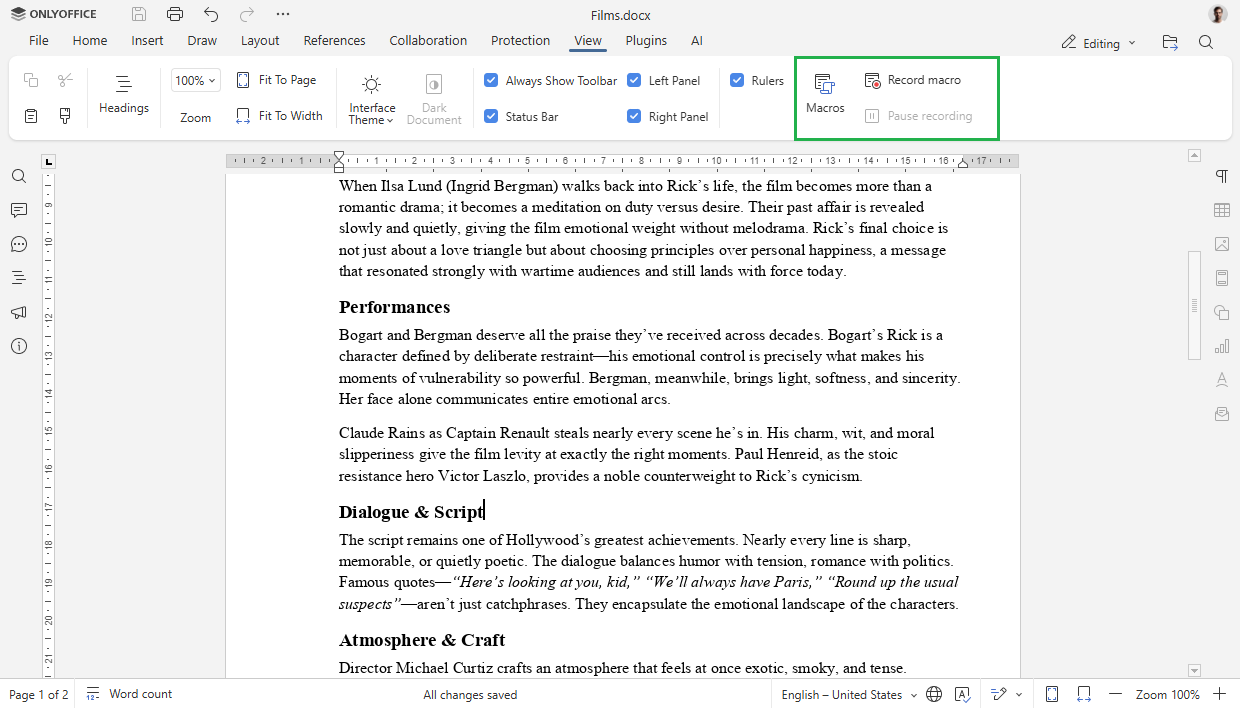
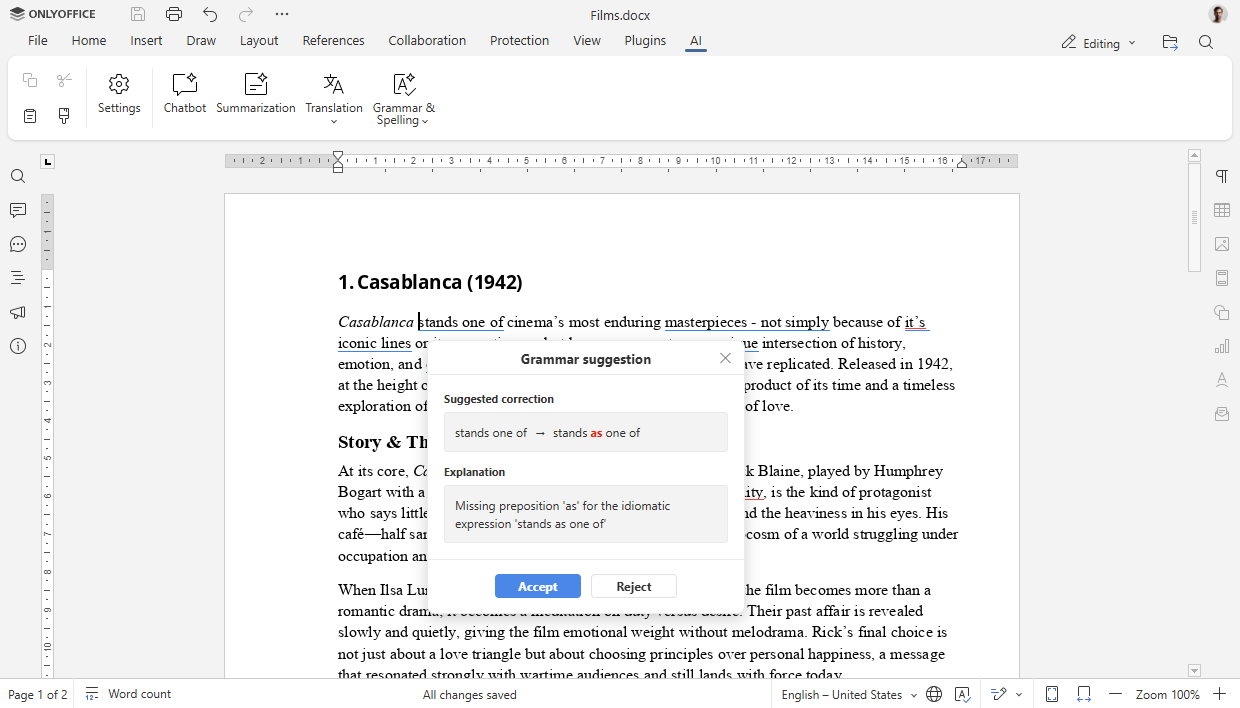
Left to right: custom keyboard shortcuts, macro recording, and AI spell check.
With this, the editor records your sequence of steps, whether you are applying consistent formatting across multiple sections, performing data manipulation, or executing any other routine operation. Once saved, you can replay the macro whenever needed.
Grammar and spelling checks get an AI upgrade through the ONLYOFFICE AI plugin. With the plugin set up, you can trigger the feature from the AI tab in the toolbar or via the right-click context menu.
The tool scans your text and offers correction suggestions, typically including explanations for the recommendations. You have the option to check your full document or just selected portions. Every suggestion appears for individual review, so you decide which corrections to implement.

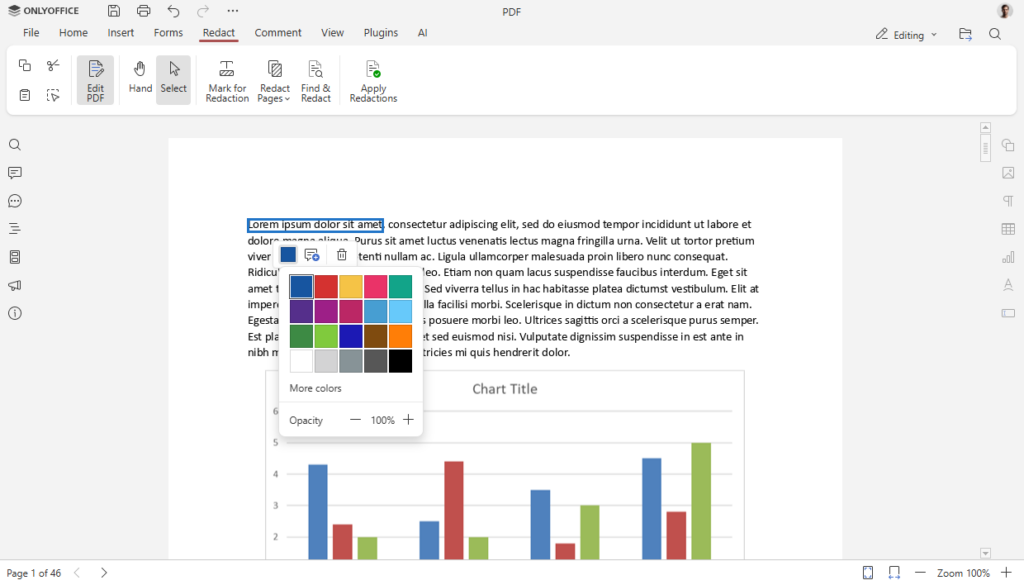
Left to right: form field role assignment and colored PDF redactions.
The Form Editor gets usability improvements in this release. You can now add descriptive text labels to checkboxes and radio buttons, making it clearer what each option represents when someone fills out your form.
Additionally, when you are inserting new fields into a form, you can assign specific roles to them during the creation process. This is useful for collaborative environments where different team members need to fill in different parts of the same form.
📥 Download ONLYOFFICE Docs 9.2
Self-hosting users of ONLYOFFICE can get the latest packages from the official website. For the rest of us, the desktop editors will be receiving this update very soon.
The changelog is also a handy resource if you want to learn more about this release.
Suggested Read 📖
 Abhishek Prakash
Recommended Comments